 zen docs
Window Sync & Recovery
Your opened windows mirror with each other instantly
Zen now syncs windows on the same device, so changes in one window are reflected across the others instantly. Creating new window will automatically start at your existing Space, showing all of your existing tabs.
Unlike previous implementation where Essentials and pinned tabs were duplicated during new window creation, Zen now just mirror the tabs state. Enabling 4 windows of Zen will keep single process of each tabs, despite displaying the same list on different windows. If you open two windows and select the same tab, the inactive window will show dimmed preview of the website.
Improve Your Flows with Window Sync
- After opening new Zen window, create new Space to start fresh while keeping easy access to Essential tabs. The Space will persist upon restarts.
- Use multiple Spaces to separate tabs for specific browsing tasks. Freely create or delete them based on your needs.
- If you use multiple windows regularly, use Quit option from main menu or Ctrl+Q shortcut to quit the browser. Zen will save the state of all your open windows and restore them properly upon reopening.
Alternatively, use New blank window option from the main menu or Ctrl+⇧+N. (Click to toggle details)
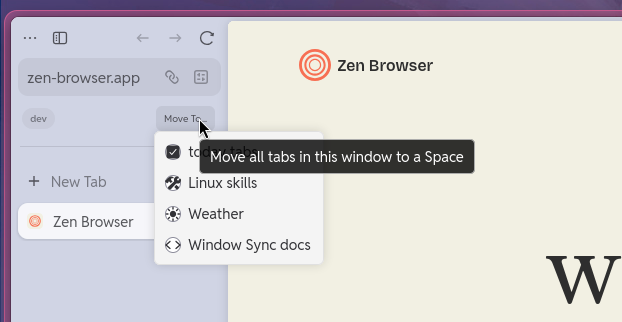
- The window will inherit container and cookies from your original Space, with a Move to.. button to easily move the tabs back to one of your existing Spaces.
- Tabs in blank windows are temporary and won't be restored upon restarts.
Recovering Lost Window Sessions
Look up directory of your current Zen profile: (Click to toggle details)
- Open
about:supportin Zen, navigate to Applications Basics section, find Profile Directory, and click Open Directory button. - For Flatpak version of Zen, the profile root directory will be located at
~/.var/app/app.zen_browser.zen/.zenand titled<profile-id>.Default (release).
Updating from Zen v1.17.15 or older
- Open your current Zen profile directory.
- Make sure Zen is fully closed.
- In the profile directory, rename
zen-sessions.jsonlz4to zen-sessions.jsonlz4.bak. - If there is
sessionstore.jsonlz4in the directory, rename it to sessionstore.jsonlz4.bak too.
Open the sessionstore-backups folder. You will see multiple backup files in .jsonlz4 format. (Click to open image)
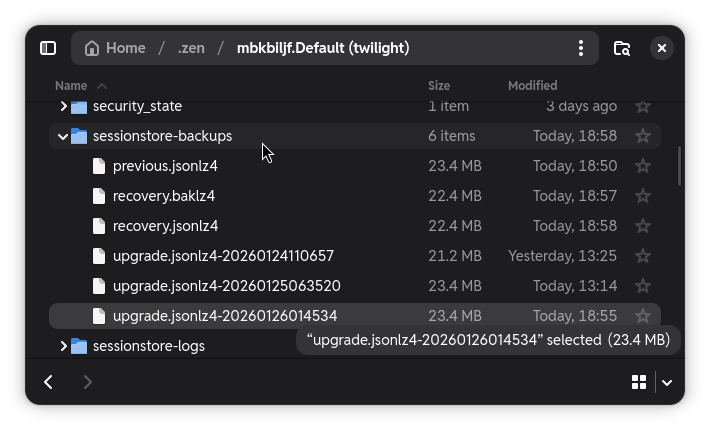
- Duplicate the latest file. This could be
recovery.jsonlz4or one of theupgrade.jsonlz4-<date-metadata>. - Rename it to sessionstore.jsonlz4.
- Copy the sessionstore.jsonlz4 file to your profile directory (one folder above
sessionstore-backups). - Open Zen and tabs from the session backup should be restored.
- If failed, close Zen and retry the steps with another backup files from
sessionstore-backupsfolder.
Session backup system on Zen v1.18 onwards
Alongside Window Sync, Zen provides new session backup system that regularly saved tab state of all synced windows, including changes to their status (essentials, pinning, split view). This significantly improves the accuracy of session restoration by Zen and facilitates manual restoration if tabs are lost. Follow these steps to restore:
- Open your current Zen profile directory. Open
about:supportand findProfile Directory-> Click onOpen directory - Make sure Zen is fully closed.
Open the zen-sessions-backup folder. You will see multiple backup files in .jsonlz4 format: (Click to open image)
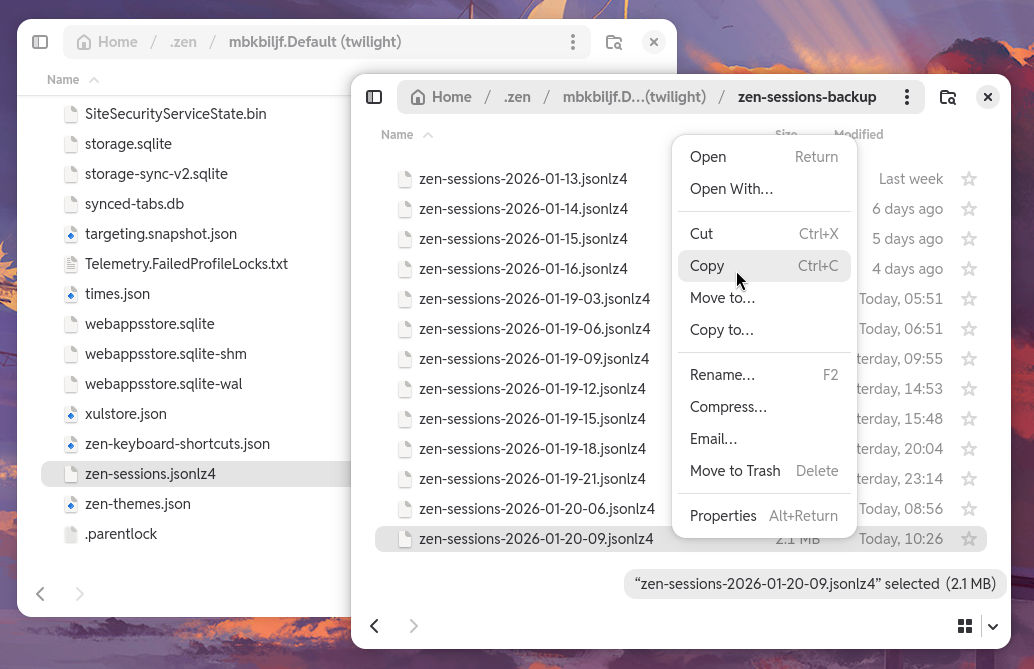
- Duplicate the latest
zen-sessions-<date-metadata>.jsonlz4file, rename it to zen-sessions.jsonlz4. - Copy zen-sessions.jsonlz4 to your profile directory (one folder above
zen-sessions-backup). - Open Zen and tabs from the session backup should be restored.
Can we sync Zen tabs and windows across devices?
The current window sync only works on the same device, but multi-device sync support is planned. For now, you can use the Send to Device option to send tabs between devices that logged in to the same Mozilla account.